
 The Backcom VN editorial team
43 min read
The Backcom VN editorial team
43 min read

In this article9
- Contents
- Why can’t you access your forex broker? Three layers of blocking to distinguish
- How to change DNS in 5 steps
- 1. Open your device’s network settings
- 2. Find the DNS or name server settings
- 3. Switch DNS from automatic (“Tự động”) to manual (“Thủ công”)
- 4. Enter the primary and secondary DNS addresses
- 5. Clear the DNS cache and try again
- Should you choose DNS 1.1.1.1 or 8.8.8.8?
- Change DNS on your router — one change for the whole household
- Forex broker blocked even after changing DNS? Four options to try next
- MT4 not connecting — a separate issue from a blocked website
- Forex broker blocked? The biggest trap is a fake broker domain
- Blocking can recur — reduce your reliance on website access
- Frequently asked questions
- Conclusion
Last updated: 15/09/2026
You open your broker’s website, but the page keeps spinning, shows an error or fails to load altogether. If you cannot access your forex broker’s website, the broker itself may not be the cause; in many cases, a forex broker blocked by an internet provider is affected at one of three layers: DNS, IP or SNI. The same issue can also cause MT4 login errors caused by ISP blocking, even when your login details are correct.
This guide from Backcomvn.com follows a clear order: diagnose first, make changes second. Knowing how to change DNS only helps when the problem is at the DNS layer. You will check the likely cause in around 30 seconds, change DNS in 5 steps, then work through 4 more powerful options if you still cannot connect.
Contents
- Why can’t you access your forex broker? Three layers of blocking to distinguish
- How to change DNS in 5 steps
- Forex broker blocked even after changing DNS? Four options to try next
- MT4 not connecting — a different problem from a blocked website
- The biggest trap when a forex broker is blocked — a fake broker domain
- Blocking keeps returning — reduce your reliance on website access
- Frequently asked questions
Why can’t you access your forex broker? Three layers of blocking to distinguish
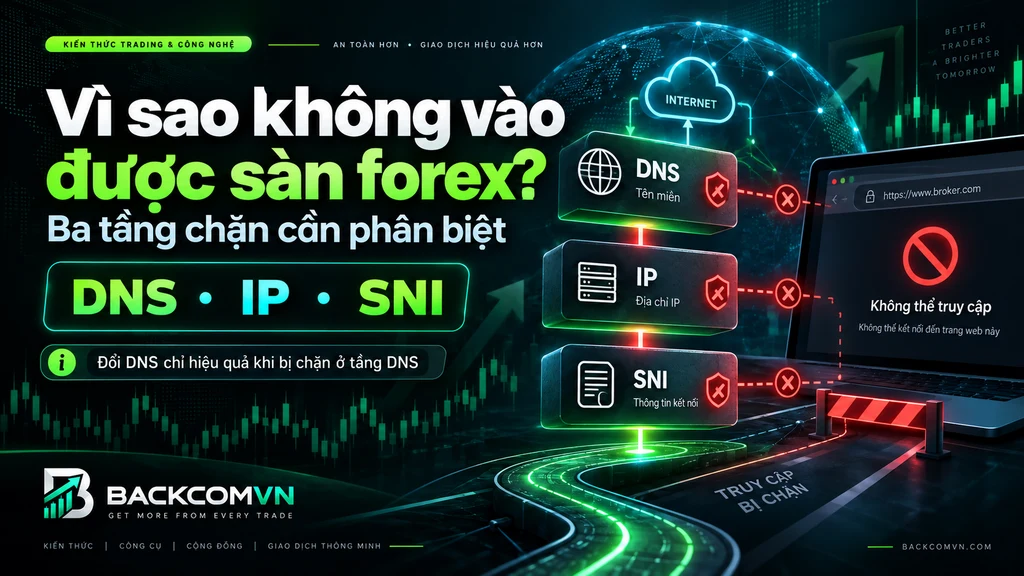
When a forex broker is blocked, your ISP may be intervening at one of three layers: DNS, IP address or SNI. Each produces different symptoms and needs a different solution. This explains why the same DNS change can restore access immediately for one person yet make no difference for another.
In simple terms, DNS helps your device find the correct IP address for the domain name you enter. If your ISP interferes only at this stage, changing DNS servers is often enough. If the blocking happens deeper, at the IP or SNI layer, you need another approach.
Three layers of blocking and their symptoms
| Blocking layer | Typical symptoms | Solutions likely to help |
|---|---|---|
| DNS | The website reports that the server cannot be found, shows a domain resolution error or DNS_PROBE_FINISHED, or fails to open only on certain networks | Change DNS or use encrypted DNS via DoH |
| IP | The domain resolves, but the website still will not load; changing DNS has no effect | VPN, Cloudflare WARP or a VPS outside Vietnam |
| SNI | HTTPS connections are interrupted, or some domains on the same infrastructure work while the broker’s domain remains inaccessible | DoH may not be enough; a VPN, WARP or VPS is usually needed |
News reports have documented cases of broker domains being blocked in Vietnam, with some brokers subsequently moving to another domain. See VietnamNet’s report on a forex broker switching to a new domain after being blocked.
The key point is: do not assume that every inaccessible website calls for a DNS change. Identify where the problem lies first, so you do not waste time changing something unrelated.
A 30-second check — is the problem with your ISP or the broker?
Before changing any network settings, try this simple check:
- Turn off Wi-Fi on your phone and switch to 4G/5G.
- Open the same broker website again.
- If it works over 4G/5G but not Wi-Fi, the problem is likely to lie with your fixed broadband connection or your ISP’s blocking measures.
- If neither Wi-Fi nor 4G/5G works, check the broker’s official app, maintenance notices or support channels before adjusting DNS.
You can also reverse the test: if you are using mobile data, try Wi-Fi from a different ISP. Comparing two connections helps narrow down the cause much faster than changing settings at random.
Important: run this check before touching DNS, a VPN or your router. If the broker’s website is undergoing maintenance or the domain is no longer active, repeated DNS changes will not fix it.
Once you have established that the problem is likely to be at the DNS layer, move on to the fix: switch to a trusted public DNS provider such as Cloudflare or Google.
How to change DNS in 5 steps
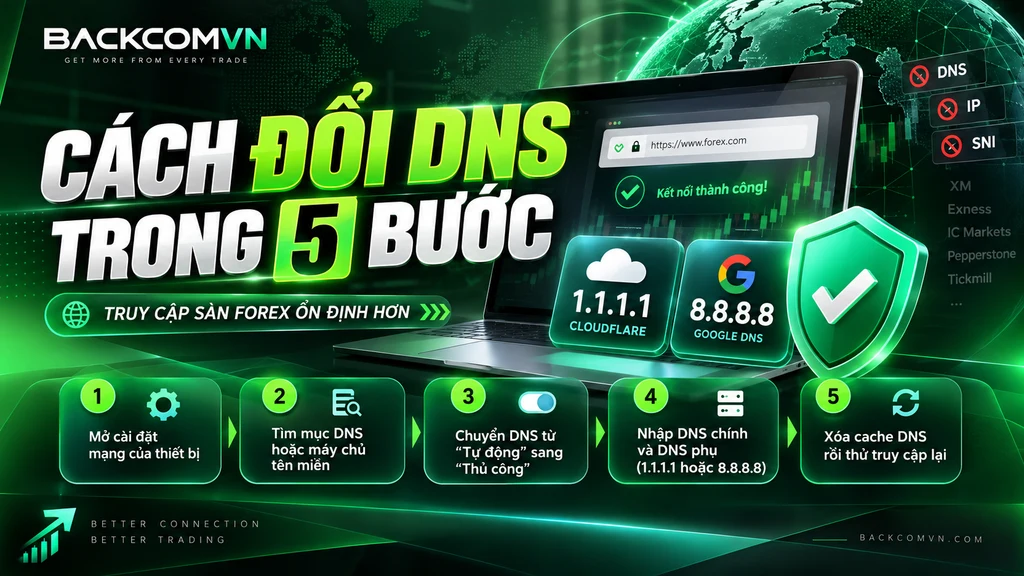
If the check above suggests a DNS issue, you can switch to a public DNS server such as Cloudflare or Google. The basic process to change DNS is the same on Windows, Android and iPhone: open your network settings, switch DNS from automatic to manual, enter the new addresses and try again.
1. Open your device’s network settings
First, open the settings for the connection you are using:
- Windows: open Network & Internet settings and select your active Wi-Fi or Ethernet connection.
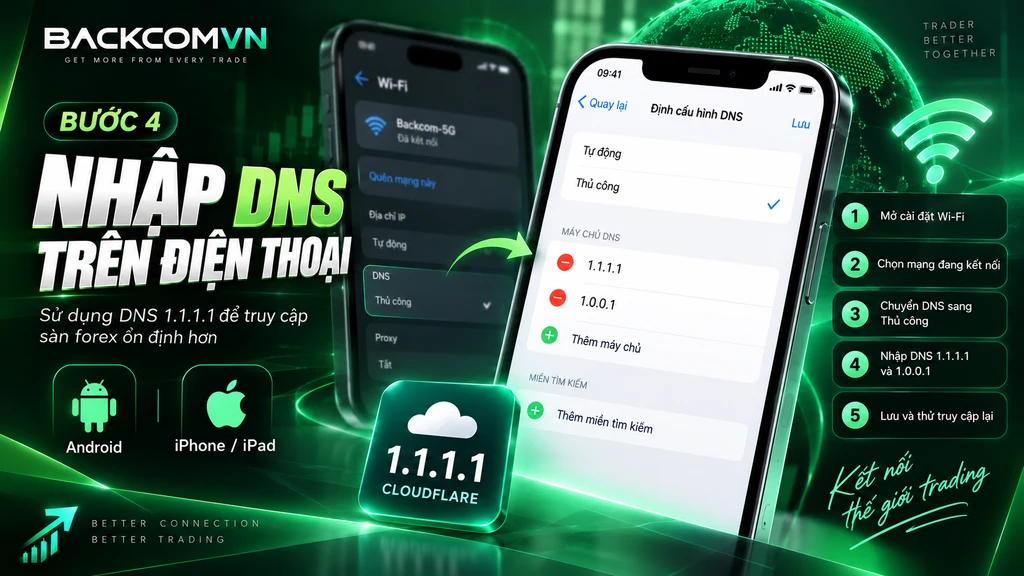
- Android: open Wi-Fi, select the connected network and look for the edit option or advanced settings.
- iPhone/iPad: open Wi-Fi and tap the information icon beside your current network.
- Router: log in to the router’s administration page and find Internet, WAN or DNS.
Menu names vary by operating system version and device manufacturer. Rather than looking for one exact button name, look for DNS, DNS Server or Name Server.
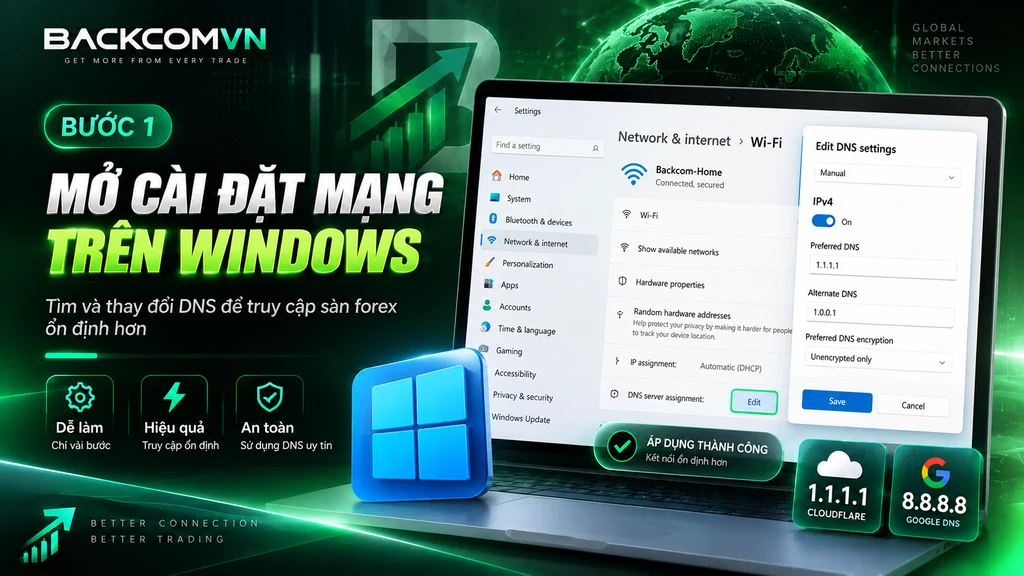
2. Find the DNS or name server settings
Once you have opened the correct network connection, find the section showing the current DNS servers. In many cases, the device is set to obtain DNS automatically from the router or ISP.
Do not delete the existing values yet. If possible, take a screenshot so you can restore them if needed, particularly when changing settings directly on your router.
3. Switch DNS from automatic (“Tự động”) to manual (“Thủ công”)
Switch the DNS option to Manual/Thủ công so you can enter your own servers.
If your device lets you configure both IPv4 and IPv6, but you only need a quick fix for website access, start by entering the IPv4 addresses in the next step correctly. Avoid changing the gateway, static IP or subnet settings unless you understand what they do.
4. Enter the primary and secondary DNS addresses
Backcomvn.com recommends trying Cloudflare DNS 1.1.1.1 first:
- Primary DNS:
1.1.1.1 - Secondary DNS:
1.0.0.1
You can check the instructions for your operating system in Cloudflare’s official setup documentation.
If Cloudflare is unsuitable or you want to try an alternative, Google Public DNS uses:
- Primary DNS:
8.8.8.8 - Secondary DNS:
8.8.4.4
The settings and setup instructions are available in the Google Public DNS documentation.
There is no need to enter both providers at once. Choose one complete pair, save the settings and check the result first.
5. Clear the DNS cache and try again
After saving the new DNS settings, disconnect and reconnect Wi-Fi or restart your browser before trying the broker’s website.
On Windows, you can clear the DNS cache by opening Command Prompt and running:
ipconfig /flushdns
Then:
- Close the browser completely.
- Open the website in a new window.
- Try both the homepage and the official login page.
- If you still cannot connect, avoid repeatedly switching between different DNS addresses.
If your forex broker is blocked at the IP or SNI layer, new DNS settings will not solve the problem. Move on to the four options in the next section rather than continuing to adjust your network settings.
Should you choose DNS 1.1.1.1 or 8.8.8.8?
Cloudflare and Google are both popular public DNS providers. For a quick way to troubleshoot domain resolution errors, Backcomvn.com recommends trying DNS 1.1.1.1 first, then switching to 8.8.8.8 if needed.
| Criterion | Cloudflare 1.1.1.1 / 1.0.0.1 | Google 8.8.8.8 / 8.8.4.4 |
|---|---|---|
| Provider | Cloudflare | |
| Purpose | Public DNS | Public DNS |
| Privacy | Cloudflare emphasises privacy in its 1.1.1.1 service | Google publishes a separate data handling policy for Public DNS |
| Can address DNS-layer blocking | Yes | Yes |
| Can address IP/SNI blocking | No | No |
| Recommended order in this guide | Priority 1 | Priority 2 |
Recommendation: try DNS 1.1.1.1 first because setup is straightforward and suits a quick DNS check. If it still does not work, try Google Public DNS to rule out a problem with a particular DNS server.
Remember that both help only when the cause actually lies at the DNS layer. Neither can restore normal access to a connection blocked at the IP or SNI layer.
Change DNS on your router — one change for the whole household
If several devices at home cannot access your forex broker’s website, changing DNS directly on the router may be more convenient: phones, computers and tablets connected through it will all use the new settings.
The basic process is:
- Log in to the router’s administration page.
- Find Internet, WAN or DNS.
- Note down or take a screenshot of the current settings.
- Enter the Cloudflare DNS pair
1.1.1.1and1.0.0.1, or Google’s8.8.8.8and8.8.4.4. - Save the settings and restart the connection if the router requires it.
Warning: router interfaces and menu names differ between manufacturers. Entering incorrect IP, gateway or WAN settings instead of changing only DNS could disconnect your entire household from the internet. Take a screenshot of the original settings first and change only the DNS fields.
If you have followed the steps to change DNS correctly but the website still will not load, the problem is probably beyond the DNS layer. Move on to DoH, an official alternative domain, VPN/WARP or a VPS, in order from the least involved option to the most.
Forex broker blocked even after changing DNS? Four options to try next
If you have followed the steps to change DNS correctly and tried both DNS 1.1.1.1 and Google Public DNS, but the website still will not load, do not keep cycling through other DNS providers. The issue is likely to involve blocking at a deeper layer, or the broker’s current domain may no longer be working properly.
Try the following four options in order, from the least intrusive to the most powerful.
Option 1 — Enable encrypted DNS via DoH in your browser
DNS over HTTPS (DoH) sends DNS queries over an HTTPS connection instead of using the standard DNS mechanism. Because this traffic travels over HTTPS, DoH can help when ordinary DNS queries are being interfered with in transit.
For a technical explanation, see Cloudflare’s official documentation on DNS over HTTPS.
Enabling it is usually quick:
- Open your browser’s Settings/Cài đặt.
- Find Privacy, Security or Secure DNS.
- Enable secure DNS.
- Select Cloudflare if your browser offers it.
- Close the browser, reopen it and try the broker’s website.
- Suitable for: interference at the DNS layer.
- Time: around 1–2 minutes.
- Advantage: no additional software required.
- Limitation: DoH may still fail if your ISP blocks IP addresses or SNI.
DoH is therefore the first option to try after a standard DNS change fails, before moving on to a VPN.
Option 2 — Use an alternative domain announced by the broker
Some brokers may change or add domains when an existing domain encounters problems. This is also when users are most likely to encounter fake websites.
Only use a domain obtained from one of these official sources:
- An email from the broker that you have verified.
- The broker’s official mobile app.
- A notice in the client account area.
- A support representative contacted through an official channel.
Do not search Google at random for phrases such as “broker X new link” or “broker X access link” and then log in on an unfamiliar domain.
- Suitable for: an old domain that has been blocked, changed or retired.
- Time: a few minutes if you can still access the app or email.
- Advantage: does not change your connection’s IP address.
- Limitation: a very high phishing risk if you obtain the link from an unofficial source.
A later section explains how to spot a fake broker domain before entering your account details or password.
Option 3 — Use a VPN or Cloudflare WARP
If the problem is at the IP or SNI layer, a VPN or Cloudflare WARP is more likely to help than changing DNS alone. Your traffic takes a different network route before reaching the broker’s website.
Keep the test simple:
- Turn on the VPN or WARP.
- Choose a stable connection.
- Open the website again.
- If it works, the earlier problem was likely related to routing, IP blocking or filtering beyond DNS.
- Suitable for: IP or SNI blocking, or blocked network routes.
- Time: around 2–5 minutes.
- Advantage: addresses a wider range of problems than DNS and DoH.
- Limitation: may increase latency, particularly if the VPN server is far away.
Scalpers should pay particular attention to this. A few extra tens of milliseconds may make little difference when browsing a website, but they can matter if your entire trading connection runs through a VPN.
Frequent IP changes between countries may also look unusual during login or identity verification. If you use a VPN, keep the connection stable instead of continually switching servers.
Option 4 — Use a VPS outside Vietnam
If you run an EA, keep MT4/MT5 running continuously or frequently encounter connection problems in Vietnam, a VPS offers a more powerful and stable option.
In effect, you no longer depend directly on the connection between your own computer and the trading server. The terminal runs on a remote server, usually in a data centre with a more stable connection.
For details, see VPS for trading: when you actually need one.
- Suitable for: traders running EAs, using automated trading or frequently experiencing routing problems.
- Time: longer than the three options above, as you need to rent and configure a VPS.
- Advantage: stable, runs 24/7 and relies less on your home connection.
- Limitation: costs money and is unnecessary for occasional manual trading.
Do not rent a VPS just because you cannot access your forex broker’s website on one occasion. Treat it as a last resort when you need stable trading infrastructure over the long term.
The recommended troubleshooting order is:
- DoH if you suspect interference with ordinary DNS queries.
- An official alternative domain if the broker has changed domains.
- VPN/WARP if the problem is at the IP or SNI layer.
- A VPS if you need a stable connection for trading over the long term.
If the website now opens but MetaTrader still shows “No connection”, do not keep adjusting DNS or your VPN out of habit. MT4 not connecting is a separate category of problem and needs its own troubleshooting sequence.
MT4 not connecting — a separate issue from a blocked website
A broker’s website and the MT4/MT5 terminal use different connection routes. This means being able to access the website does not mean MT4 can connect, and vice versa. If MT4 is not connecting but the website opens normally, do not keep changing DNS out of habit.
Check the terminal in order, starting with the simplest possible causes.
Four reasons MT4 displays “No connection”
1. The wrong trading server is selected
This is the first thing to check.
A broker may have separate servers for:
- Demo accounts.
- Real accounts.
- Different account groups.
- Different server regions.
If you select the wrong server, MT4 may display No connection, fail to load prices or prevent you from logging in, even when your internet connection is working normally.
How to check:
- Open your account registration email or the broker’s account management area.
- Confirm the server name assigned to your account.
- Select that exact server in MT4.
- Enter your account number and trading password again.
- Wait a few seconds, then check the connection status.
If the problem persists, move on to the next step.
2. A firewall or antivirus is blocking the terminal
Windows Firewall or security software may block MT4/MT5 connections, particularly after an operating system update or a terminal reinstallation.
Common signs include:
- The website remains accessible.
- Other applications still have internet access.
- Only MT4 fails to load data or repeatedly reports a lost connection.
Check whether MetaTrader has permission to access the network. If you need to test this, temporarily allow the application through the firewall and check again.
Do not leave all your security software disabled for an extended period just to resolve this issue.
3. The broker has renamed or replaced its server
Sometimes a broker moves accounts to another server or renames a server after upgrading its infrastructure.
When this happens, the details you saved previously may no longer be correct.
Check:
- The latest emails from the broker.
- Notices in the client area.
- The updated server list in MT4/MT5.
- The broker’s official support channel if you still cannot identify the server.
If the broker confirms a server change, update the server name instead of repeatedly trying to log in to the old one.
4. There is a problem with your internet connection
Once you have ruled out the three causes above, check your internet connection.
You can:
- Open any website to confirm that your internet connection is working.
- Try a 4G/5G connection instead of your current Wi-Fi.
- Restart your modem or router.
- Reopen MT4 and monitor the connection status.
If MT4 is not connecting on either of two different internet connections, and both your account details and server are correct, contact the broker’s support team to check for a server-side issue.
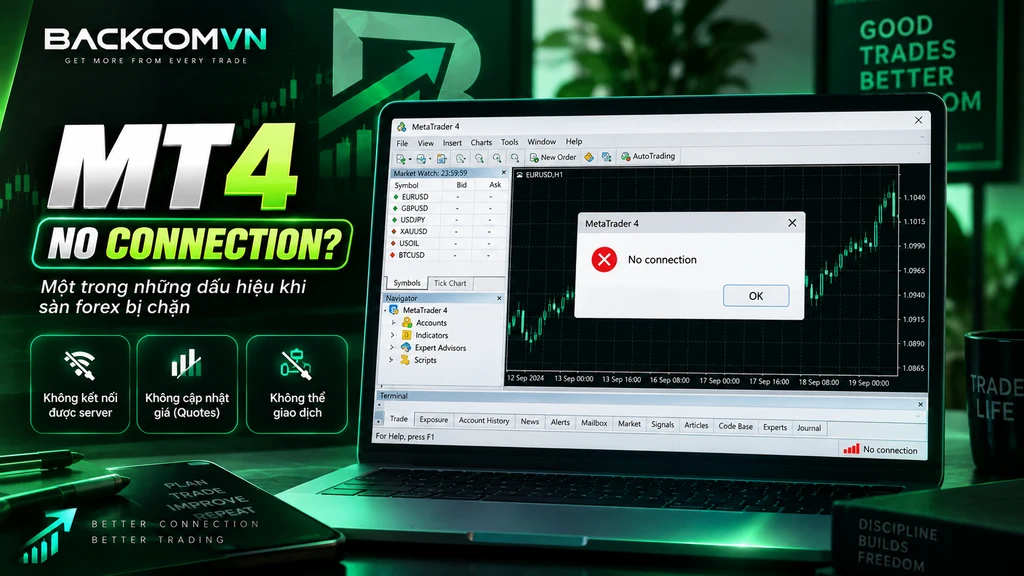
A common misconception — a server time difference is not a connection error
A common mistake is to see that the time on an MT4/MT5 chart differs from Vietnam time by a few hours and assume the terminal is malfunctioning.
In fact, charts usually display the broker’s server time, which does not necessarily match Vietnam’s time zone. H1 or H4 candles, or the start of a new trading day, appearing at different times from your local clock does not indicate a lost connection.
If the terminal is still receiving new prices, the spread is changing and the connection status is normal, the difference simply reflects the broker’s server time zone settings.
For more detail, see our article on why MT4/MT5 server time differs from Vietnam time.
When MT4 is not connecting, check the following in order:
- Have you selected the correct server?
- Is a firewall or antivirus blocking the connection?
- Has the broker changed servers?
- Has your internet connection actually dropped?
These checks help distinguish terminal issues from a blocked website, saving you time changing DNS, enabling a VPN or adjusting your router when the actual cause is simply the wrong server selection.
Forex broker blocked? The biggest trap is a fake broker domain
When a forex broker is blocked, a common reaction is to search Google for a “new link”, “broker login link” or “alternative domain”. This is also when users are most likely to land on a fraudulent website.
Scammers can build a page that closely resembles the real website, copying its logo, colours and layout to trick users into entering their account details, passwords or payment information. A domain being accessible does not make it safe.
Three signs a domain is fake
1. The domain contains misspellings or unusual variations
Examine every character in the domain name.
Fake websites often use:
- A missing or extra letter.
- The number
0in place of the lettero. - Added hyphens or extra words.
- A different domain extension from the official website.
- Added words such as “login”, “secure”, “vip”, “support”.
Do not judge a website by its appearance alone. A fake page can copy almost the entire design of the real website.
2. The HTTPS connection or certificate looks suspicious
Modern browsers usually warn you when there is a problem with a website’s certificate. If you see a security warning, an invalid certificate or a domain mismatch on the certificate, do not proceed with logging in.
However, remember that HTTPS does not prove a website is authentic. Scammers can obtain SSL certificates for fake domains too.
SSL only indicates that the connection between you and the website is encrypted. It does not prove that the organisation behind the website is a licensed broker.
3. The licence number cannot be found on the regulator’s website
This is the most important check.
A website may claim that a broker is “regulated by FCA”, “licensed by ASIC” or “holds a CySEC licence”, but those claims are only credible if you can verify them on the regulator’s official register.
The FCA also warns about clone firms — businesses impersonating authorised firms. Scammers may copy a real company’s name, licence number and details, then replace its website, email address or telephone number with their own.
That is why seeing a “licence number” should never be enough to earn your trust.
How to check a licence yourself in 2 minutes
When you come across a new or alternative domain, follow these checks in order:
- Identify the legal entity that the website claims operates the broker.
Note the company name, licence number and named regulator. - Open the regulator’s official register.
For example: FCA, ASIC or CySEC. - Search by legal entity name or licence number.
Do not search by brand name if the brand and legal entity have different names. - Cross-check the contact details.
Check whether the website, email address, physical address and telephone number match the register. - Do not log in if the details do not match.
A discrepancy in even one key detail is enough to stop and investigate further.
For more on the differences between regulators, see FCA, ASIC, CySEC: which regulator is the strictest?.
If the legal entity behind the broker is registered in an offshore jurisdiction, examine the scope of investor protection more closely. Backcomvn.com covers this separately in offshore brokers: what you gain and what you give up.
[Suggested image 4: The FCA Warning List or a register page showing a legal entity search]
Alt: checking a licence when a forex broker is blocked and a domain is suspected to be fake
The safety principles here are simple:
- Do not use login links from adverts or random posts.
- Do not trust a website simply because it looks like the real one.
- Do not rely solely on the SSL icon.
- Always verify the legal entity and licence number on the official register.
If the broker has genuinely changed its domain, obtain the details through its official emails, app or support team. Do not let an access problem turn into an account security risk by logging in to a fake website.
Blocking can recur — reduce your reliance on website access
If your forex broker is repeatedly blocked, prepare ahead instead of waiting for the next failure before looking for a fix. Website access should not become the single weak point in your entire trading process.
Three things to do in advance:
- Save your MT4/MT5 server name and login details somewhere secure.
- Know which support channels are available outside the website, such as the broker’s app or official contact channels.
- Choose a broker with stable infrastructure, a dedicated app and several clearly documented ways to get in touch.
This preparation is particularly useful if you trade frequently, run an EA or need to manage your account while the website is temporarily unavailable.
Broker selection criteria that directly affect access
When choosing a broker, look beyond spreads, leverage and promotions. The ability to maintain access and support users during an outage is also a practical consideration.
A broker with good infrastructure should offer:
- A dedicated mobile app
If the website develops a fault or is blocked, the app may provide an alternative way to access your account. - Clear domain information
If subdomains or alternative domains are available, the broker should announce them through official channels instead of leaving users to search Google. - Responsive support in Vietnamese
When you cannot connect, an active support channel helps you establish whether the problem lies with your internet provider, your account or the broker. - Clear server infrastructure details
MT4/MT5 server names, server regions and account details should be provided in full from the outset.
If you are choosing a platform, see our guide to choosing a forex broker in five steps for a broader assessment that goes beyond access alone.
Preparing properly also reduces the chance of finding MT4 not connecting and having to search for emails, server details or support channels just when you need to place a trade.
If you cannot access your forex broker AND cannot withdraw funds — that is a separate issue
These two problems need to be considered separately.
Being unable to access a forex broker is usually an issue with the internet connection, DNS, IP, SNI or domain. Being unable to withdraw funds, meanwhile, may involve verification procedures, payment methods, account conditions or an issue on the broker’s side.
In other words:
- Being unable to access the website does not prove that the broker has financial problems.
- Being able to access the website does not guarantee that withdrawals will proceed normally.
- If both happen at once, address each problem according to its cause rather than treating them as one issue.
If the difficulty is withdrawing funds, see our guide to being unable to withdraw from a broker: six causes and the order to address them.
The ultimate goal is to build a trading process that relies less on a single website, rather than find a trick that bypasses blocking forever. With server details, support channels and backup options ready, you can resolve problems faster and spend less time adjusting network settings while trading.
Frequently asked questions
Will changing DNS slow down my internet or make it less secure?
Usually, choosing to change DNS to a reputable public service does not significantly reduce internet speed. With Cloudflare’s DNS 1.1.1.1 or Google Public DNS, the main change is how domain names are resolved. However, DNS does not encrypt all traffic and does not replace a VPN or security software.
If my forex broker is blocked, is the money in my account affected?
No. A forex broker being blocked at the DNS, IP or SNI level is an access issue; it does not automatically change your trading account balance. If you also cannot withdraw funds, check the withdrawal process, account verification and the broker’s response separately instead of drawing conclusions from a website access error.
Why is MT4 not connecting when the website works normally?
If MT4 is not connecting while the website works, first check that you have selected the correct trading server, then check the firewall/antivirus, whether the broker has changed servers and finally your internet connection. This is a separate terminal issue; changing DNS simply because the website was previously blocked will usually not resolve it.
Does using a VPN to access a broker breach its terms?
This depends on the broker’s policies. A VPN may help when you cannot access your broker website because of IP or SNI blocking, but frequent changes in the country associated with your IP address may trigger alerts during login or identity verification. Before using one long term, read the terms and consult the broker’s official support team.
If you trade through a broker eligible for Backcomvn.com’s programme, you can also check its rebate policy to help optimise trading costs; this is separate from using a VPN or resolving access problems.
Conclusion
When your forex broker is blocked, do not start by enabling a VPN or changing multiple network settings at once. A more effective approach is to follow this order:
- Identify the blocking layer: test Wi-Fi and 4G/5G to determine whether the problem lies with your connection or the broker.
- Try changing DNS: prioritise Cloudflare 1.1.1.1 or Google Public DNS if you suspect interference at the DNS level.
- Enable DoH if standard DNS is still being interfered with.
- Check alternative domains through the broker’s official sources.
- Use VPN/WARP if the issue involves IP or SNI.
- Consider a VPS if you need stable infrastructure over the long term for an EA or MT4/MT5.
The priority is to identify the cause before making changes, rather than regain access at any cost. If one approach does not work, move to the next troubleshooting layer instead of switching DNS or VPN services at random.
Above all, never log in to an unfamiliar domain simply because it appeared when you searched for a “new broker link”. The greatest risk of losing website access is entering your credentials on a fraudulent page, rather than a few minutes of disruption.
If recurring access problems have you considering another platform, see our guide to choosing a forex broker in five steps to assess licensing, infrastructure, support and trading conditions alongside website access.
Disclaimer: Forex trading through international brokers is currently not licensed in Vietnam. Content on Backcomvn.com provides technical information solely to help troubleshoot access issues. It is not investment advice, a trading recommendation or an invitation to use any broker. Readers are responsible for their own decisions and the risks arising from their trading activities.

The Backcom VN editorial team
The Backcom VN editorial team tracks forex trading costs: the fee schedules, rebate levels and licences of eight brokers, together with the market figures that feed into the cost of each trade. Every number we publish carries a public source and the date it was accessed, so you can check it yourself.
Related articles

Divergence in technical analysis
A trend can stay divergent longer than your account can stay solvent. Four filters to apply before trading one.

What a carry trade is, and why it unwinds so fast
A carry trade earns small and steady, then loses large and sudden. Three signs the carry is being unwound, and…

Identifying the trend: three simple methods that work
Three ways to read a trend, and something more important than all three: recognising when there is no trend, because…