
 21 min read

In this article7
- The three details you need, and why your Exness trading password is different
- Exness login steps for MT4/MT5
- Choosing the correct Exness server: an easy field to get wrong
- MT4 login error and MT5 connection problems: common fixes
- What to check after connecting
- Exness login: frequently asked questions
- Conclusion
Does MetaTrader show “Invalid account” or keep trying to connect, even though the same password has just opened your account dashboard? An Exness login in MetaTrader requires the credentials for your trading account, rather than your Personal Area email address and password. Using the wrong Exness trading password is a common cause of trouble. This backcomvn.com guide explains which details to prepare, how to select your server and how to investigate an MT4 login error or a failed connection in MT5.
Last updated: 28/09/2026.
Contents
- The three details you need
- Connecting to MT4/MT5
- Choosing the correct server
- Common errors and their fixes
- Checks after connecting
- Frequently asked questions
The three details you need, and why your Exness trading password is different
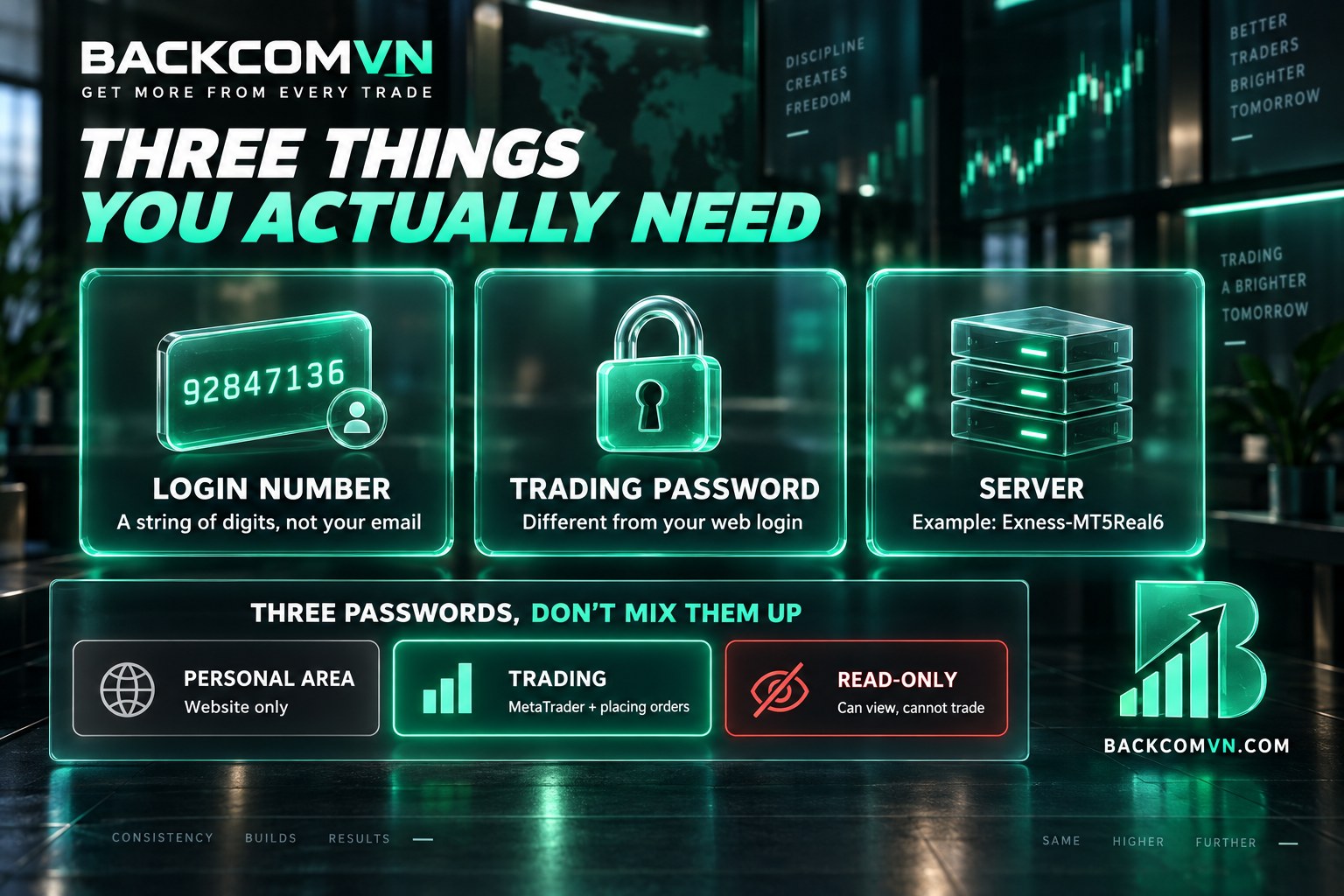
Your Exness login in MetaTrader needs a trading account number, a trading password and a server name. All three must belong to the same account, on the correct platform: MT4 or MT5. The email address you use to access your Personal Area cannot replace the account number, even if it identifies you elsewhere on the website.
| What you need | What it looks like | Where to find it |
|---|---|---|
| Trading account number (login) | A sequence of digits, for example an eight-digit number | Personal Area → My Accounts → the cog or three-dot icon for the correct account → Account Information |
| Trading password | The password you set when creating the trading account | Cannot be retrieved — can only be reset |
| Server name | For example, Exness-MT5Real6, Exness-MT5Trial8 | In the same place as the account number |
Interface note: the route in the table applies where those options appear in your account. Current documentation describes other ways of displaying account information. If you cannot see the menu shown here, check the official instructions for finding your account number and server. Avoid guessing which button to press based on its position in a different version of the interface.
Three passwords with different purposes
- Personal Area password: opens the account management website, also known as the Personal Area. It is not automatically the password you should enter in MetaTrader.
- Exness trading password: connects your account to the trading platform and allows you to trade. This is the password required in the Password field.
- Read-only password: also called an investor password. It lets someone view the account, but does not give them permission to place orders.
Some accounts created automatically during initial registration may share their password with the Personal Area. Having previously used the same characters successfully in both places does not mean the two passwords are always identical. This distinction matters particularly when you have created additional trading accounts later, each with its own details.
If you cannot remember your Exness trading password, reset it for the specific account you want to use. Repeatedly trying your email password or an old password from another account will not clarify the problem. If you can connect but the trading controls are greyed out, check whether you have read-only access before looking for another explanation.
Your login is a number, not an email address
The Login ID is your trading account number. Entering your Personal Area email address in the Login field will not authenticate the account. When copying the number, check that you have included every digit and have not picked up a space at the beginning or end. A small copying mistake is enough to make the details incorrect.
If several accounts appear in your list, select the one you intend to use before collecting its details. Our guide to choosing an Exness account type explains the available choices. Record the account number alongside its corresponding Exness server so that you do not accidentally combine details from two separate accounts.
Exness login steps for MT4/MT5
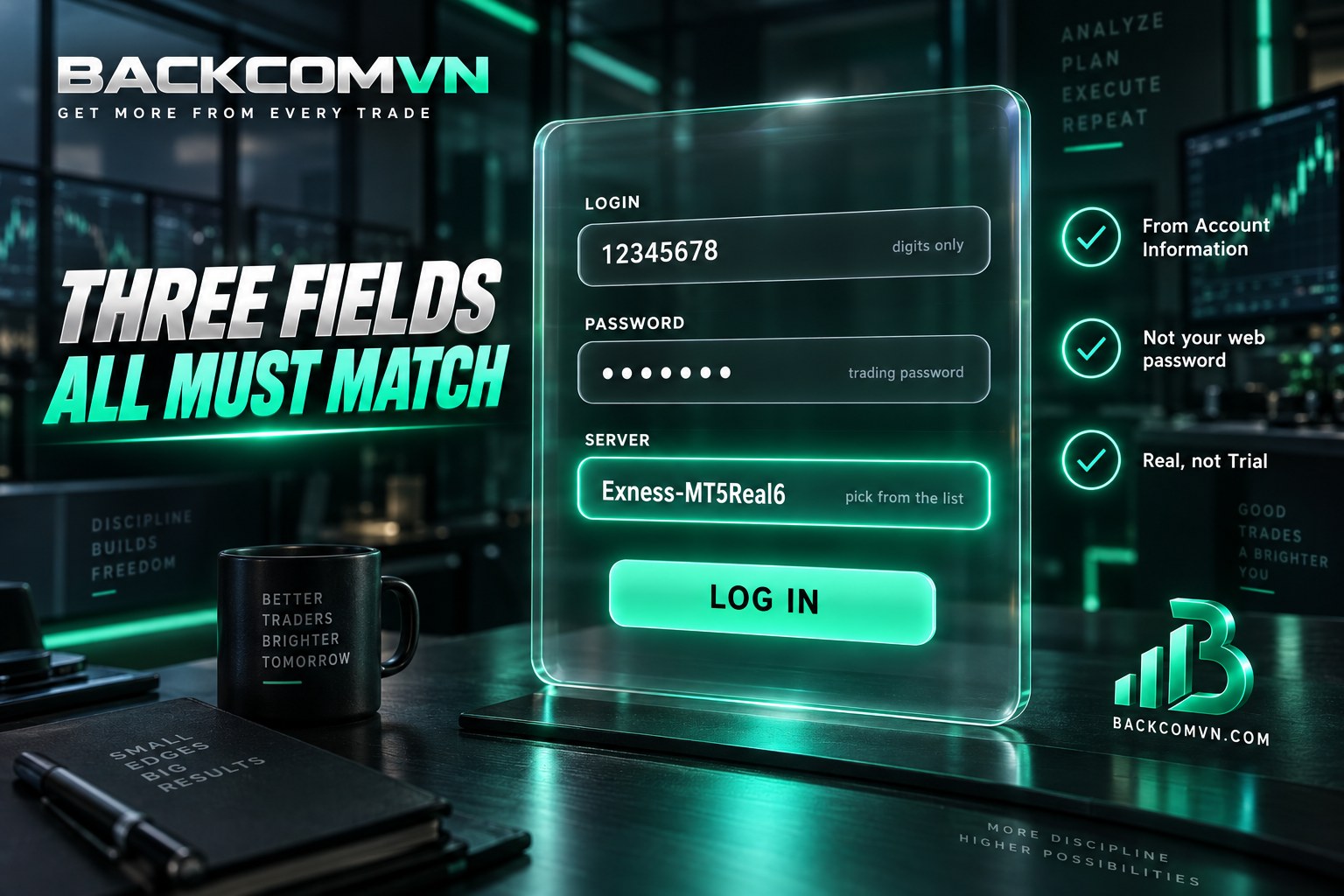
Before attempting your Exness login, establish whether the account belongs to MT4 or MT5 and whether it is a real or demo account. Have the relevant details ready before opening the connection dialogue. If someone is helping you through the process, do not photograph your password or send it to them as part of the instructions.
MT5 login on a computer
- Download MetaTrader 5 from the official MetaQuotes website and install it on your computer.
- Open your Exness Personal Area and go to My Accounts. Find the account you want to use, click its cog or three-dot icon, then select Account Information. Record the account number and server name if your interface displays these options.
- In MT5, select File → Login to Trade Account to open the account connection dialogue.
- Enter the account number in Login and the trading password in Password. Select the exact server name from the list; do not type it manually if it is already listed.
- Click Login, then check the bottom-right corner for the connection status displayed in kb/s.
After an MT5 login, check both the account number displayed and the data being downloaded. An open programme window does not establish that you have connected successfully. Nor does a chart that was already visible confirm you are using the intended account. Check the account details and connection information together before assuming the session is ready.
The three matching fields are the account number, the Exness trading password and the assigned server. If you need to enter them again, compare each field with the account details and correct it individually. Changing all three at once makes it harder to identify which entry caused the failed connection.
Connecting through MT4 or a mobile phone
In the desktop version of MetaTrader 4, the menu route is also File → Login to Trade Account. Enter all three details for your MT4 account. The similar dialogue does not make credentials interchangeable, so do not try the details from an MT5 account simply because the fields look familiar.
On the mobile app, open the account management section, choose to add an account and search for the broker using “Exness”. Once the server list appears, select the exact name before entering your credentials. The starting point for an MT5 login on mobile therefore differs from the desktop menu route, although the required account details remain the same.
If you are still choosing a platform, read how MT4 and MT5 differ. The Exness Trade app and the MetaTrader apps are separate applications. Being able to open an account management app does not establish that your MetaTrader session is connected, even when both applications relate to the same trading account.
An MT4 account cannot connect to MetaTrader 5, and an MT5 account cannot connect to MetaTrader 4. This is not a software fault: the broker maintains separate account types for the two platforms. If you open an MT5 account, you must use MT5.
If your Exness login works on a computer but fails on your phone, compare the entries on both devices before changing the password. A slightly different server name is easy to overlook in a long list. Start with the details that already work and check whether the phone is using precisely the same set.
Choosing the correct Exness server: an easy field to get wrong
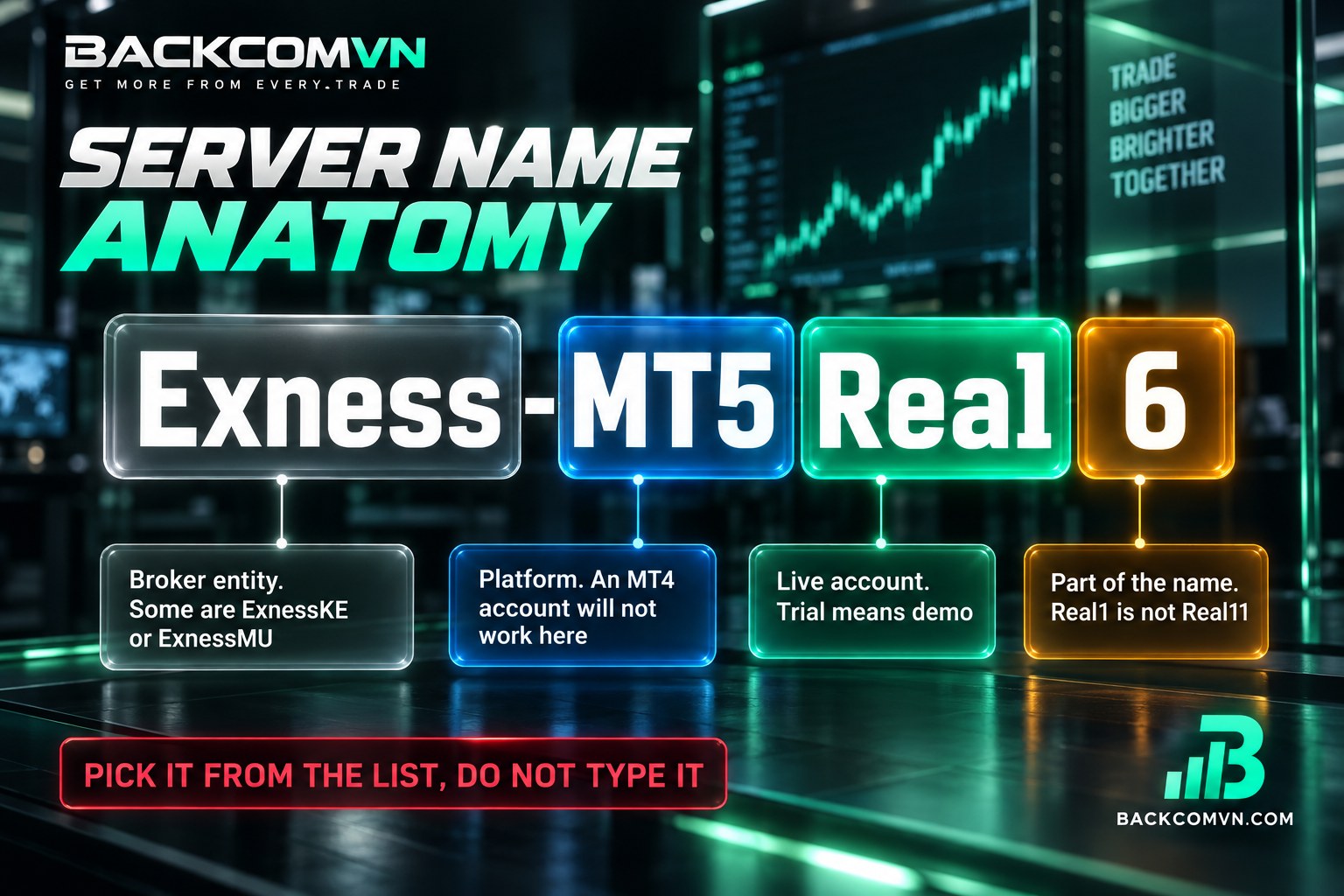
For an Exness login, you do not choose a server according to speed or geographical distance. You must use the one assigned to your account. A name that looks familiar can still be incorrect: a single different character may be enough to prevent authentication, even when you have entered the right account number and password.
An Exness server name may look like Exness-MT5Real6, Exness-MT5Trial8 or Exness-MT5Real15. Some legal entities use their own prefixes, such as ExnessKE-MT5Real4, ExnessMU-MT5Real11 and ExnessMU-MT5Trial11. These examples illustrate the naming structure. They are not a shortlist of alternatives to try when your account does not connect.
- Prefix: preserve the entire beginning of the name, including any letters that accompany Exness.
- Platform: check that the MT5 component matches the type of account you are using.
- Real: identifies a real account; Trial: identifies a demo account.
- Final number: is a required part of the name, rather than an indication of preference or priority.
For example, Exness-MT5Real1 and Exness-MT5Real11 are different servers. If your account information specifies the second name, selecting the first will not work as a substitute. Likewise, changing Trial to Real does not turn a demo account into a real account simply because you now want to trade with real money.
A useful way to check an Exness server is to read its name from left to right: prefix, platform, Real or Trial, then the final number. Compare it directly with the account currently selected in your Personal Area. Avoid relying on an old screenshot or details somebody else has sent, which may refer to another account.
The account number and server are fixed assignments, rather than settings you can customise. If an MT5 login fails, choosing another server does not move the account there. It sends an authentication request to the wrong destination. Keep checking against the assigned details instead of treating each similar name as another possible route into the account.
If the required Exness server is missing from the list, enter “Exness” in the broker search field so the software can load the server list. Then compare the full name again. If it is still unavailable, keep your account details unchanged and contact support. Do not create a plausible-looking name by combining parts of other entries.
MT4 login error and MT5 connection problems: common fixes
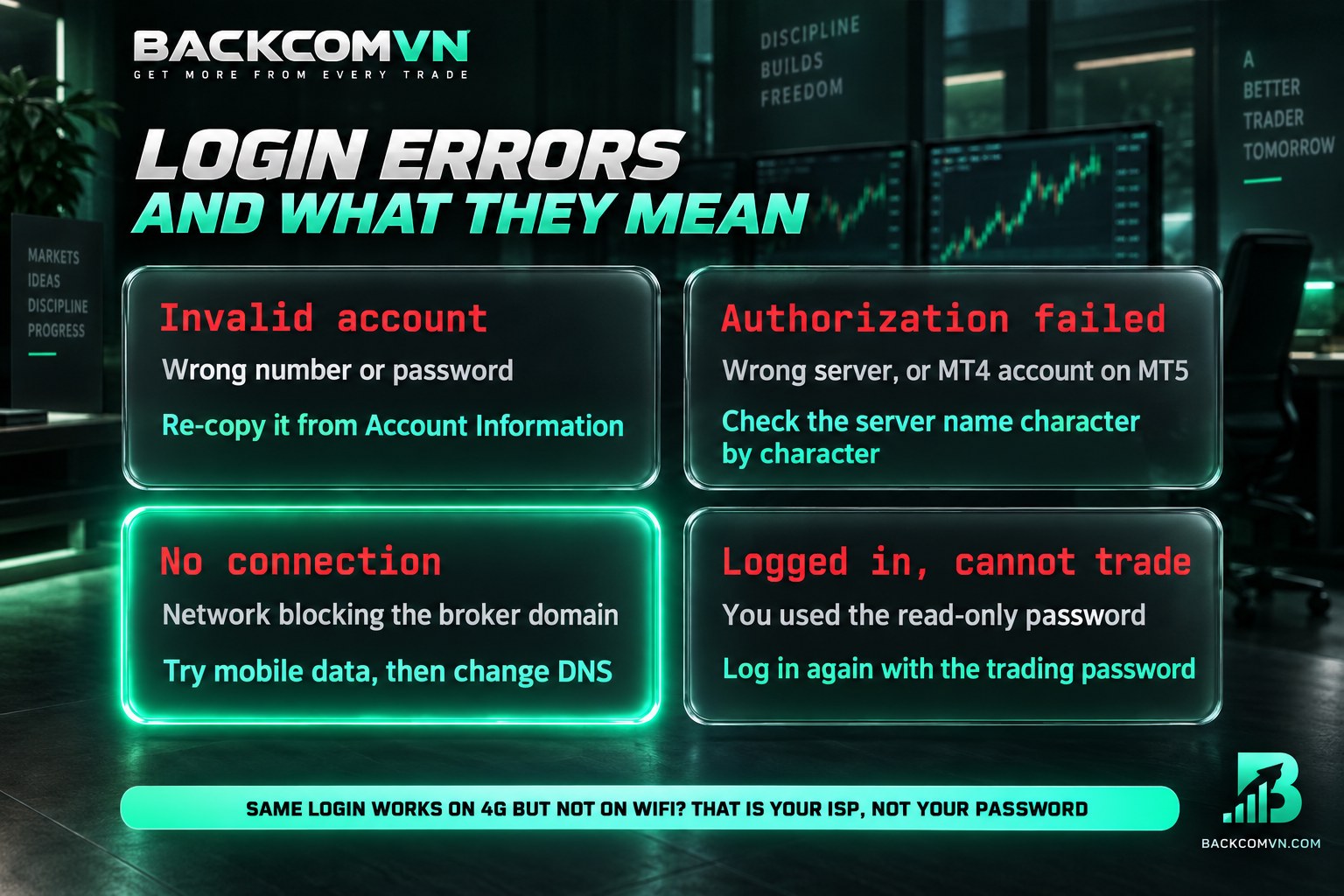
When investigating an MT4 login error, read the message before changing any settings. The table below helps narrow down the cause; it does not provide a single definitive diagnosis for every case. The same message can appear for several reasons, so use it to decide what to check next rather than immediately resetting everything.
| Message in MetaTrader | Common causes | What to do |
|---|---|---|
Invalid account | Incorrect account number or password, or an email address entered instead of the account number | Reopen Account Information if your interface includes it and copy the account number again; reset the trading password if unsure |
Authorization failed | Incorrect credentials, the wrong server, or an MT4 account being used in MT5 | Check the server name, password and account platform |
No connection / keeps trying to connect | Network connection, firewall, incorrect details or an unreachable server | Try another network, such as mobile 4G; if it works, investigate the original network |
| Connected, but unable to place orders | A read-only password may be in use | Log out, reconnect with the trading password and check trading permissions |
For “Invalid account”, first check that Login contains a number, then confirm that your Exness trading password belongs to that specific account. If you are unsure of it, reset it once and enter the new password. Continuing to guess forgotten passwords adds uncertainty without helping you establish whether the remaining account details are correct.
For “Authorization failed”, compare every character of the Exness server name and check the platform assigned to the account. Retry your Exness login using the details you have just verified. A password change cannot resolve a platform mismatch: an MT4 account will still fail to connect through MT5 even with its correct password.
If the MT4 login error persists, record the exact message, the time it appeared and the networks you have tried. Exness troubleshooting documentation calls for checking both credentials and connectivity. Do not assume every failed connection is a password problem, particularly when you have already confirmed the account details and tested them consistently.
When a Vietnamese internet provider blocks a domain
In Vietnam, a suspected ISP block or failed domain-name resolution can easily be mistaken for an MT4 login error. One useful comparison is whether the same device, using the same account details, connects over mobile 4G but fails on your home Wi-Fi. Keeping the device and credentials unchanged makes the network difference easier to assess.
Being unable to open exness.com in a browser is another clue, but does not prove that access to the trading server is also blocked. Website access and MetaTrader connectivity are not identical. A difference between two networks helps narrow the investigation, but it does not identify the precise cause by itself.
If domain-name resolution appears to be involved, see how to change DNS in five steps, then test the original network again. Changing DNS cannot resolve every type of block, routing problem or firewall restriction. Equally, resetting an account password will not repair a network fault, so match the action to the evidence you have.
When retrying your Exness login, keep the credentials that worked over 4G. If the MT5 login still fails on Wi-Fi, give support the results of your comparison between the two networks. Explain which connection worked and which failed, while keeping your password and verification codes private.
Connected, but charts are blank or the time looks wrong
A blank chart alone does not establish that you have an MT4 login error. Check the connection, the account currently displayed and whether data is downloading. If prices are stationary, consider the instrument’s trading hours before changing your credentials. The chart needs to be assessed alongside the connection information, rather than used as the sole test.
MetaTrader displays server time, rather than Vietnamese local time. Read how MT4/MT5 server time differs from Vietnamese time before comparing candles or account history. Different timestamps do not mean you have connected to the wrong account; make sure you are comparing times on the same basis.
What to check after connecting
After a successful Exness login, compare the account number at the top of MetaTrader with the one in your Personal Area. Also establish whether you are using a real or demo account; the balance alone is not a reliable identifier. This check is particularly useful when you manage several accounts and could otherwise place an order in the wrong one.
Once connected, follow the guide to setting up MT5 for the first time. If you have shared your password, change it and enable two-factor authentication for the Personal Area using the supported options; see trading account security. A working connection does not mean you have checked your leverage or margin requirements.
Orders placed through MetaTrader qualify for Exness rebates when the account is registered through the appropriate referral route and meets the programme’s conditions.
Exness login: frequently asked questions
What if I forget my Exness trading password?
You cannot retrieve the password you previously set. You can only reset it through the trading account management section of your Personal Area. Afterwards, use the new password to reconnect MetaTrader on your devices. Resetting this password does not automatically change the password used to access the Personal Area itself.
MT4 login error: why will an MT4 account not connect to MT5?
The broker maintains separate account systems for the two platforms. Entering MT4 credentials in MT5 does not convert the account, even when the password is correct. To use MT5, you need an MT5 account and its corresponding credentials. Changing the application alone does not change the platform to which your existing account belongs.
Is MT5 login different on a phone and a computer?
You need the same three details: account number, password and server. The difference is the starting point in the mobile app. Open account management, choose to add an account and search for the broker using “Exness”. Select the correct server from the results before entering your credentials, just as you would check the server on a computer.
Can I change my account number or Exness server?
No. The account number and server are assigned when the account is created and remain fixed. If the details do not match, check which account you have selected in your list. Choosing a different server in the software does not change the server actually assigned to the account.
Conclusion
An Exness login in MetaTrader requires separate trading credentials, rather than your account management email and password. If an MT5 login or connection through MT4 fails, check the password type, Exness server and network connection in that order. For further reading, explore Exness information on backcomvn.com.
Leveraged forex and CFD trading carries a high level of risk and can result in the loss of all your capital. This content is for information only and does not constitute investment advice. The Personal Area interface and server list may change, so check the details in your own account before proceeding.
Related articles

Exness deposits and withdrawals: channels, timing and the real cost
Automatic 24/7 withdrawal solves only one of three legs. The other two are where your money actually leaks.

How to log in to IC Markets on MT4/MT5: a beginner's guide
IC Markets runs three platforms, not two. That single fact explains most of the 'right password, still no login' reports.

How to log in to Vantage on MT4/MT5: a beginner's guide
Most failed Vantage logins are not wrong passwords. Three causes explain nearly all of them — and each takes a…