
 22 min read

In this article7
A successful XM login in MetaTrader requires the correct trading account number, password and server for that account. Common stumbling blocks include entering an email address as the login, using the password for the website or choosing a server with a similar name. This guide explains how to check each field, connect on a computer or phone, and investigate the messages you may see when accessing MT4 or completing an MT5 login.
Last updated: 29/09/2026.
- The three details you need
- Connecting on a computer or phone
- Reading and selecting the correct server
- Understanding errors and fixing connection problems
- Checks after signing in
- Frequently asked questions
- Conclusion
The three essentials, and why your XM trading password is a separate credential
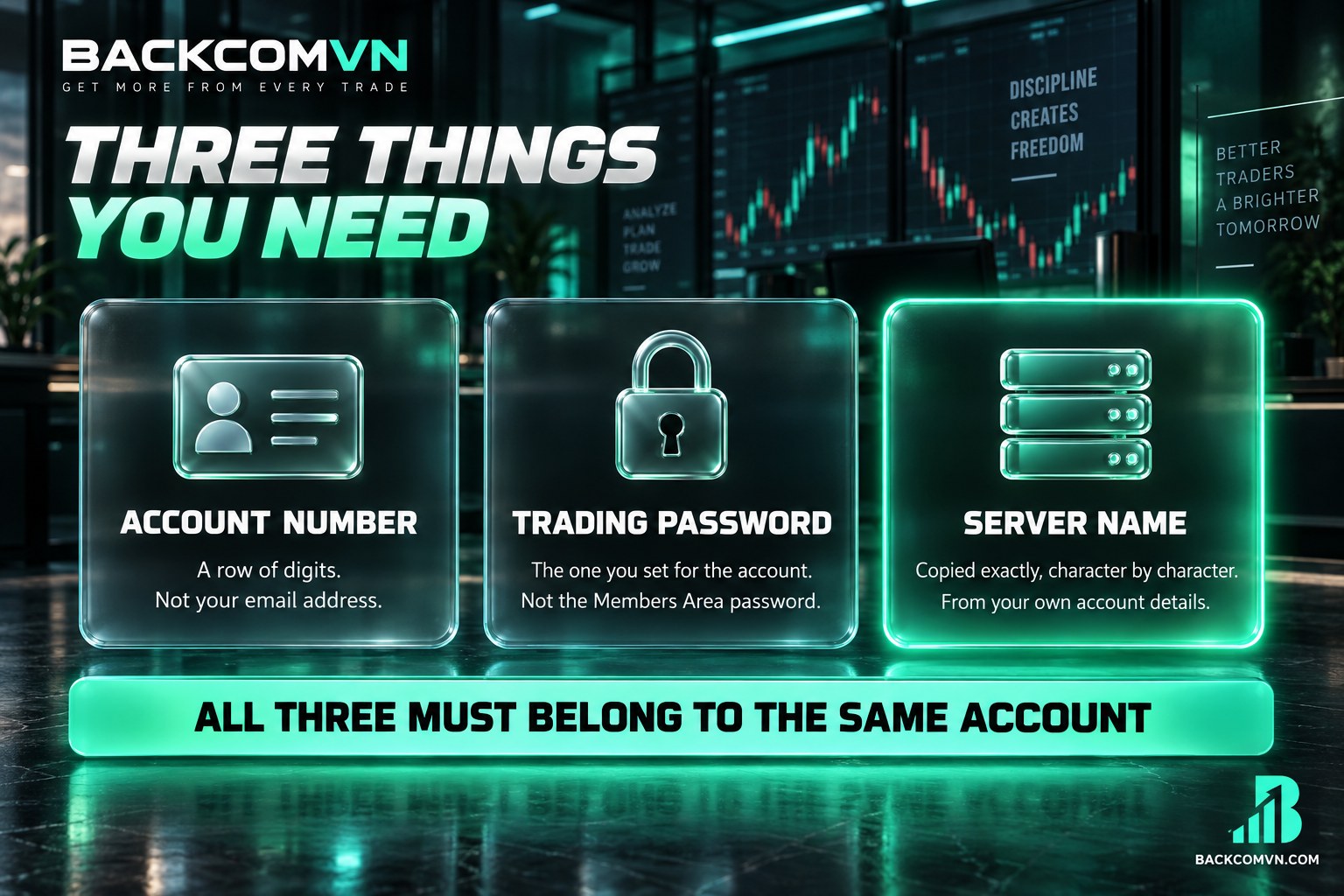
Before attempting your XM login, open the account confirmation email or the Members Area. If you have several accounts, select the one you intend to use and retrieve its specific details. Keep that account’s information together: combining its number with another account’s password or server can prevent authentication, even when each detail is valid for a different account.
| What you need | What it looks like | Where to find it |
|---|---|---|
| Trading account NUMBER | A row of digits, NOT an email address | The account confirmation email or the account details in the Members Area |
| TRADING PASSWORD | The character string you set for trading; this is the XM trading password you enter in MetaTrader | The password you previously set; if forgotten, use the trading account’s password recovery or change function |
| SERVER NAME | The name must match exactly; an XM server name may include a prefix, a platform identifier or Real/Demo | Your own account confirmation email and Members Area |
Three password types to keep separate
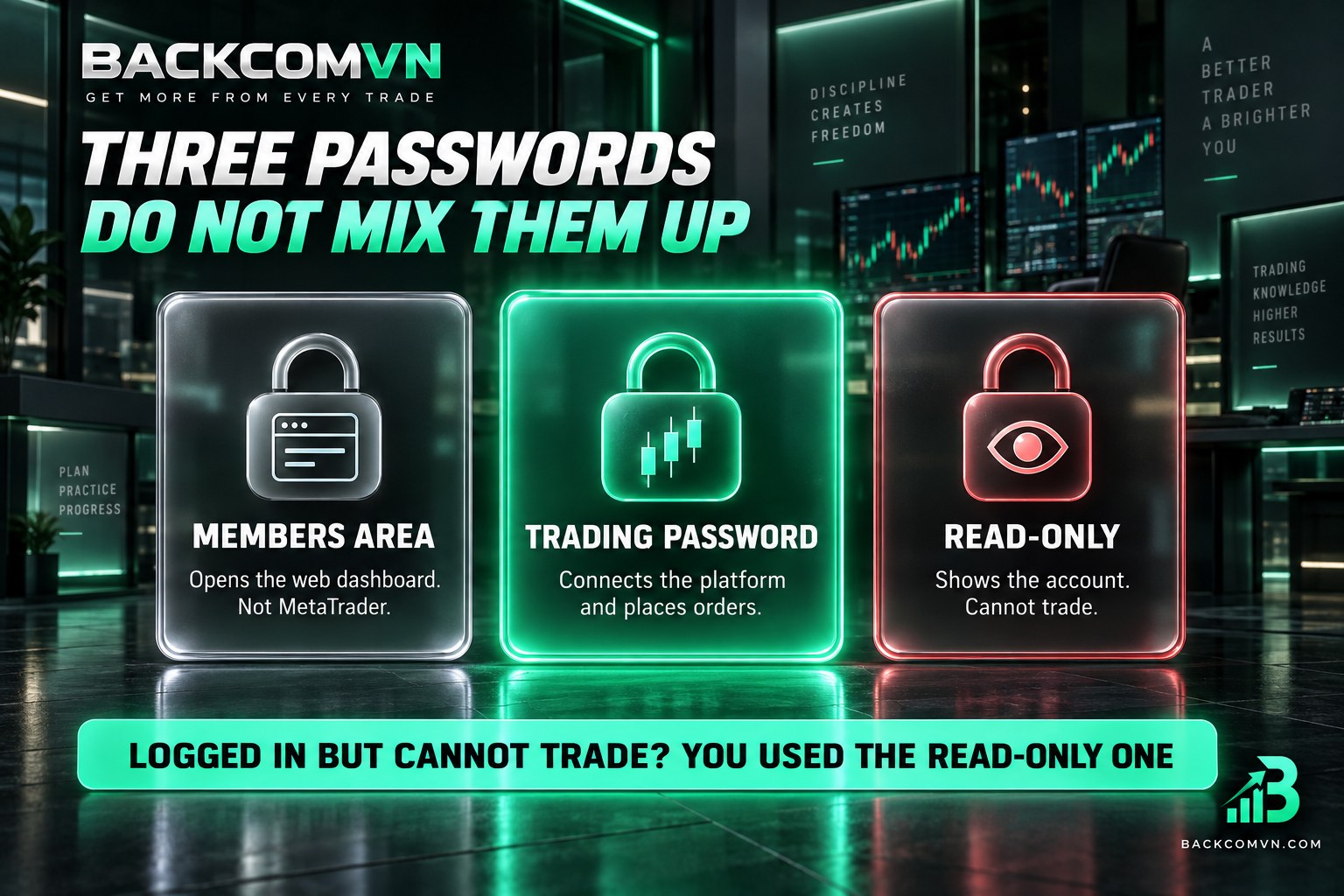
The Members Area password gives you access to the account management website. Being able to open that website confirms access to the management area; it does not establish that you have the correct password for connecting your trading software. Treat the website and trading account as separate login checks.
The trading password allows you to connect through MetaTrader and place orders. When the software asks for Password, enter the XM trading password for the account you have selected. Do not assume it matches your email password or the password used to manage your accounts on the website.
The read-only / investor password allows you to view the account but does not allow you to place orders. If the software opens your account successfully yet trading is unavailable, check which password you used before reinstalling the application. Access to account information alone does not establish permission to trade.
Login means the account number, not your email
The Login field takes the trading account number. The email address used for account management on the website cannot replace those digits. When copying the number, check for spaces at the beginning or end, then compare it with the account currently selected in the Members Area. This matters particularly when switching between several accounts.
Make this check both when investigating an MT4 login error and when preparing an MT5 login. An account type name does not replace the connection details either. If you are unsure about Standard and Ultra Low, read how the XM account types differ, then return to the specific account and confirm which platform it uses.
XM login steps for MT4/MT5
Start by establishing whether the account was created for MT4 or MT5. If you need the software, see the official download pages for MetaTrader 4 or MetaTrader 5. Check the application name before opening the connection window, especially if both platforms are installed on the same computer.
- Open the software that matches the account. An MT4 account uses MetaTrader 4; an MT5 account uses MetaTrader 5.
- From the menu bar, select File → Login to Trade Account to open the trading account login window.
- Enter the account number in Login. Compare every character with the confirmation email or Members Area, and do not enter an email address.
- Enter your XM trading password in Password. Check the keyboard input mode, capital letters and any spaces introduced when copying it.
- In Server, select the name that exactly matches the account details. A familiar-looking name is not sufficient.
- Confirm the login and wait for the software to respond. Check the displayed account number and connection status. If an error appears, record its exact wording so you can investigate the relevant cause.
An MT4 account cannot log in to MetaTrader 5 and vice versa. The broker maintains separate accounts for the two platforms. To use MetaTrader 5, you need an account created for it. Changing applications does not automatically transfer an account, its history or its connection details to the other platform.
For help identifying the software, read the differences between MT4 and MT5. When investigating an MT4 login error, confirming the platform first can prevent an unnecessary password reset. A valid password will not resolve a mismatch between the account’s platform and the application you have opened.
How mobile MT5 login differs from desktop access
On a phone, find the account management or add-account section, then choose the option for signing in to an existing account. Button names and positions can vary by operating system and application version. Follow the route for connecting an account you already hold, rather than the route for opening a new one.
The application will usually ask you to search for a broker or server before entering your credentials. For a mobile MT5 login, compare the search result with the server name shown in your account details. Then use the same account number and corresponding password that you would enter on a computer.
Choosing the correct XM server: a common source of mistakes
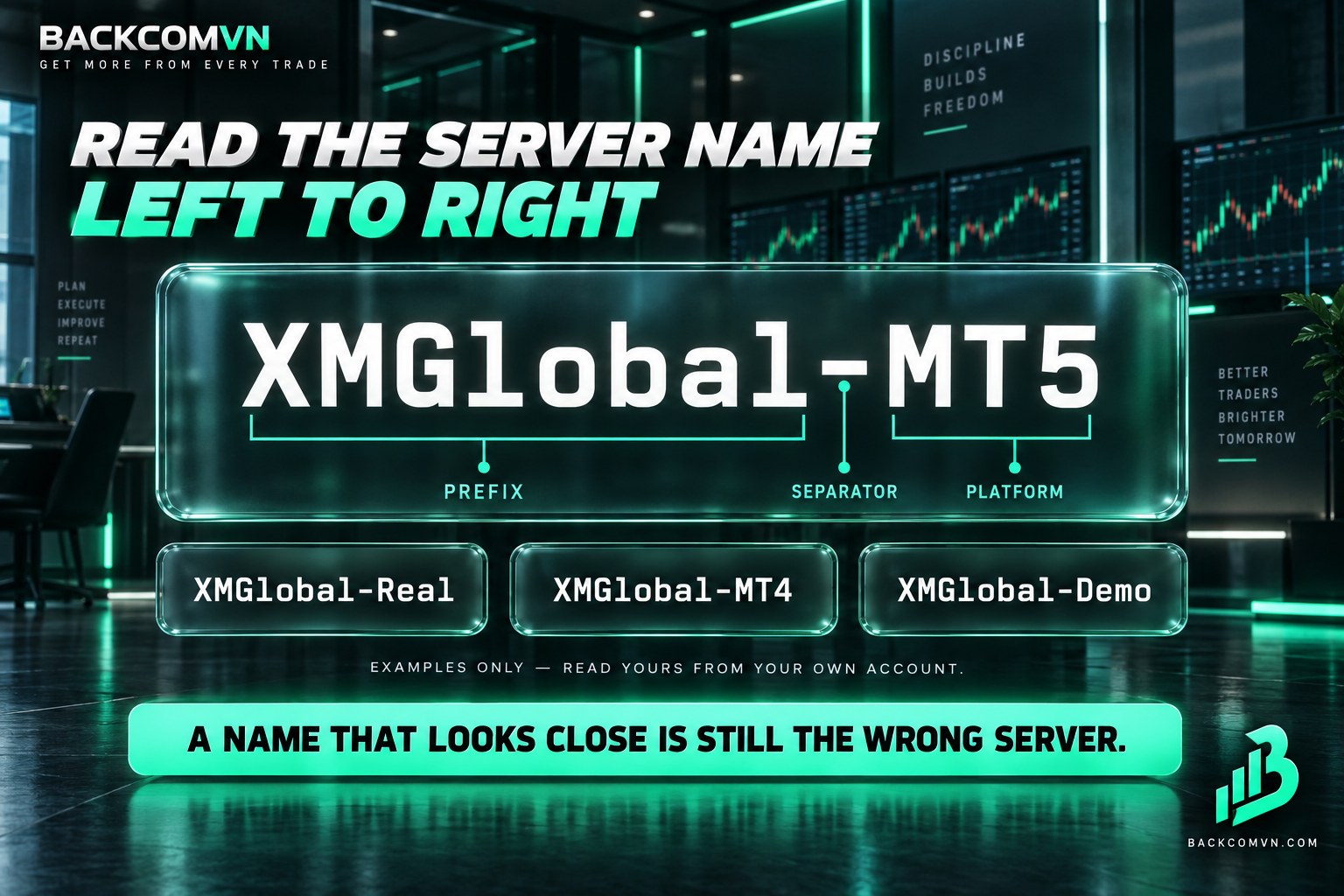
For an XM login, the whole server name must match, not just the letters XM. Think of it as the address where the account is managed. Even with the correct account number, sending an authentication request to the wrong address can result in a failed connection. Compare the complete name before trying again.
Names such as XMGlobal-Real, XMGlobal-MT5, XMGlobal-MT4, XMGlobal-Demo and XMTrading-Real are examples for reading the structure, NOT a list to try. Your account’s actual name may differ. Retrieve it from the place displaying your account information instead of working through these examples in the application.
Read the name from left to right. The prefix distinguishes naming groups; MT4 or MT5, where present, indicates the platform; Real or Demo, where present, distinguishes live and practice environments. If there is a number at the end, retain it when comparing names. A suffix is part of the name and should not be discarded.
Not every name contains all these components. Understanding the structure of an XM server name helps you spot differences, but it does not provide enough information to infer your server. The exact name is in your account confirmation email and your own Members Area. Selecting another server does not move your account there.
If the required name does not appear during an MT5 login, check the platform and the text entered in the search field. If you previously used another broker, retrieve the details specifically for this account. The guide to connecting Exness with MT4/MT5 may help explain the process, but its server information cannot identify the server for this account.
A server name also cannot replace legal information. Licences belong to individual legal entities, so the question to check is “Which legal entity is your contracting party?” Compare the entity named in your account agreement. Do not infer your rights or scope of protection from a server prefix or the brand’s total number of licences.
MT4 login error messages and MT5 connection fixes
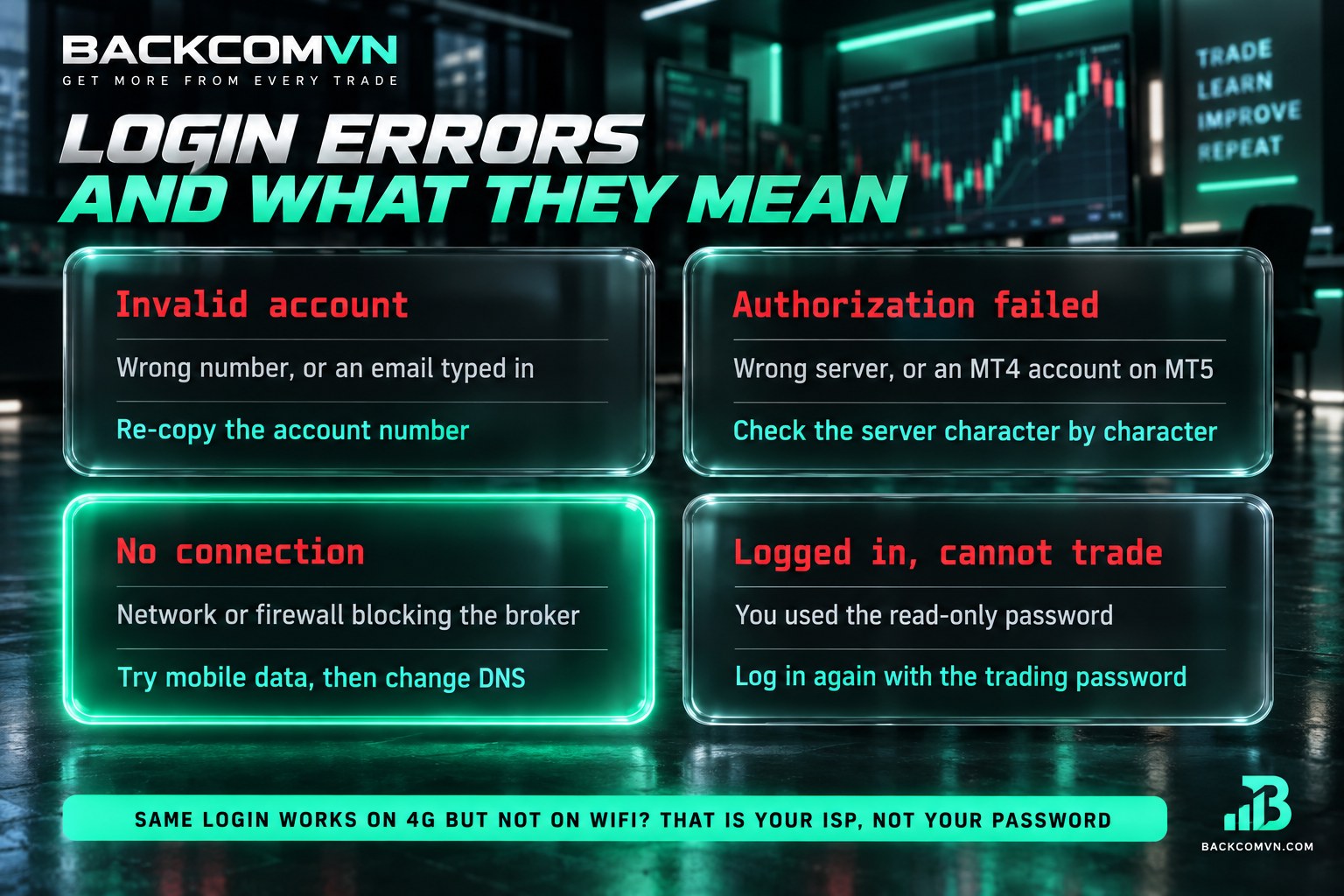
If your XM login fails, read the message before changing settings. For an MT4 login error, work through the account number, password type, platform and server in that order. Change only the field that appears incorrect each time. This makes it easier to identify which correction restores access and avoids introducing additional uncertainty.
| MetaTrader message | Common causes | What to do |
|---|---|---|
Invalid account | Incorrect account number or password, or an email address entered instead of the account number | Compare the Login digits; re-enter the XM trading password for the correct account, checking spaces and keyboard input mode. |
Authorization failed | Incorrect credentials, the wrong server, or an MT4 account used in MT5 | Check the platform, account number and password; compare the XM server with the confirmation email or Members Area. |
No connection | A network issue, firewall restriction or inaccessible server | Try another network; check the application’s network access permissions and the server’s status. |
| Signed in but unable to place orders | A read-only password is the likely cause | Sign in again with the trading password; if orders remain unavailable, record the specific message for further investigation. |
The table helps narrow the possibilities; it does not mean each message has only one cause. If access still fails after these checks, record the server name, platform and time of the error for support. These details help describe the problem without disclosing your password. Never include the password in a message or screenshot.
Possible domain blocking in Vietnam: 4G works, Wi-Fi does not
In Vietnam, if the same device and credentials work over 4G but fail on home Wi-Fi, that suggests possible provider blocking or a domain resolution problem rather than an incorrect password. The comparison is useful only if the account, server and application remain unchanged. Otherwise, you have changed more than the network being tested.
In this situation, an MT4 login error is not a reason to reset the password immediately. Check whether the Wi-Fi connection works normally, reconnect the router and review whether a firewall is preventing the application from accessing the network. You do not need to disable all device protection to test the connection.
If domain resolution appears to be the issue, see how to check the connection and change DNS when broker access is interrupted. Record the existing settings before changing them so you can restore them. Different results across networks help narrow the investigation, but do not establish the cause conclusively.
Signed in, but the chart is blank or the time looks wrong
A blank chart does not automatically indicate an MT4 login error. First check whether the account is connected and whether a trading symbol has been selected, then try opening a chart from the instrument list. If fresh data is still missing, review the connection status and that instrument’s trading hours before drawing conclusions.
MetaTrader shows server time, not Vietnam time. A difference in the displayed time does not prove that you selected the wrong account. When comparing order history or candle timestamps, see how server time differs from Vietnam time. Do not change your device’s clock simply to force the chart to match local time.
What to check after signing in
After a successful XM login, compare the displayed account number with the Members Area. Establish whether you are in a live or demo account before taking any action. If you manage multiple accounts, the chart currently on screen is not enough to identify the active account; check the account information itself.
Next, familiarise yourself with the instrument list, charts and area displaying orders. The basic MT5 setup guide can help you arrange the interface. There is no need to place a live order merely to demonstrate that the connection worked. Check the account details and connection status as part of getting oriented.
Do not share your password with anyone. When requesting support, provide only the information needed and obscure private data in screenshots. Avoid saving passwords on shared devices, where someone else may subsequently use the application. For further access controls, read how to secure a trading account.
A working software connection does not confirm the account’s legal protections. Before using real money, read the agreement to identify your contracting entity and independently check that entity’s licence. The brand’s combined licence count cannot replace this comparison: the relevant information is the entity attached to your particular account and agreement.
Affiliate disclosure: Backcom VN is a referral partner and receives commission. XM rebates are calculated on trading VOLUME, not profit. Check the conditions applicable to your account. Rebates do not guarantee trading results and should not be a reason to increase your trading volume beyond your plan.
Frequently asked questions about XM login
What if I forget my XM trading password?
Open the Members Area, select the correct account and find the trading password change or recovery function. Follow the verification steps shown. If you cannot find the relevant option, contact official support. Once the process is complete, use the new password for your XM login on each device you use.
Why can an MT4 account not access MT5?
The broker maintains separate accounts for the two platforms. This is not a software fault. An MT5 login requires an account created for MetaTrader 5. Changing the server name or reinstalling the application cannot turn an MT4 account into an MT5 account; first confirm the platform assigned to your account.
Is signing in on a phone different?
The button locations and server search process differ. The required information remains the trading account number, trading password and server name belonging to the same account. Choose the option to sign in to an existing account, and check that you are using the appropriate MT4 or MT5 application before entering those details.
Can I change the account number or XM server?
You cannot change the account number or move servers by entering different values in the Login window. Those fields locate an account that has already been assigned. If you need a change, check the available options in the Members Area or ask support what is possible for your particular account.
Conclusion
For a successful XM login, collect all credentials from the same account and confirm its platform. If you encounter an MT4 login error or cannot access MT5, compare the message, account number, password and XM server before changing settings. Once connected, verify whether the account is live or demo and keep your access details private.
Risk warning: Trading forex and leveraged products can result in a loss of capital. Successfully connecting MetaTrader or receiving rebates does not guarantee profit. Understand the trading conditions, identify the legal entity you contract with and use only money you can afford to lose.
Related articles

How to log in to Vantage on MT4/MT5: a beginner's guide
Most failed Vantage logins are not wrong passwords. Three causes explain nearly all of them — and each takes a…

How to log in to IC Markets on MT4/MT5: a beginner's guide
IC Markets runs three platforms, not two. That single fact explains most of the 'right password, still no login' reports.

XM review 2026: is XM trustworthy?
XM holds four licences, and the one on the homepage is probably not yours. Which entity signs your contract, what…